The Shell
The shell is a command line interface to the operating system. It is a program that allows you to directly execute commands and interact on deeper level.
You may be familiar with bash from other Linux distributions. Ultramarine uses the zsh instead of bash. We also use the Starship Prompt to provide additional convenience features like displaying the current git branch.
To learn more about shell scripting, you can watch this Bash introduction video by Fireship here:
NOTE: The Z shell is mostly compatible with Bash, so most of the knowledge you will learn will be mostly applicable in Ultramarine Linux.
Interacting with the Shell
To start using the shell, open the Terminal app.
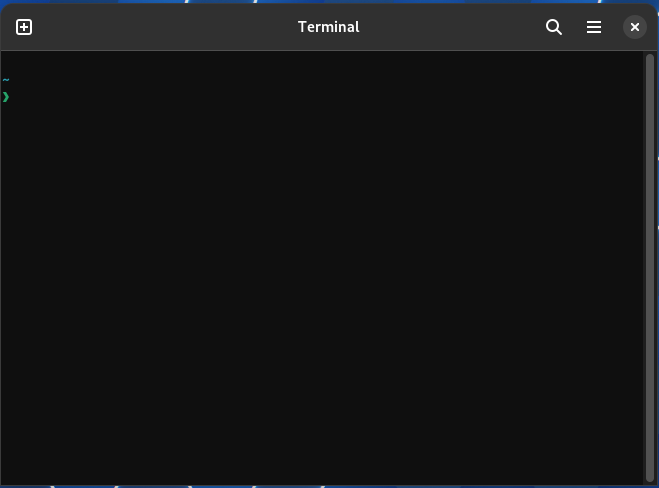
You will be greeted with a prompt, simply type in the command you want to execute, and press Enter⏎.
To change directories, type cd followed by the path you want to change to.
cd /home/user/Documents
To list the contents of a directory, type ls followed by the path of the directory of which you want to list the contents of.
ls /home/user/Documents
The directory path is an optional argument. Running ls with no arguments will print the contents of the current working directory (the folder you cded into).
The ls command, especially, has a lot of useful flags (i.e. execute ls -a, -a being the flag). Below is a table of the most important flags for ls.
| Flag | Modification |
|---|---|
-a | List all files in a directory, including hidden files which begin with a .. |
-d | List specified directories without listing their content (try ls -d /). |
-t | Sort the output in the order of modification time; latest first. |
-r | Sort output in reverse order. |
-l | List one file per line. Also display information about the files listed. |
The output of ls -l includes columns of information about each file in the following order: file type, permissions, number of symlinks, file owner, file size, date of last modification, and file name.
total 4
drwxr-xr-x    2 bob bob      4096 Jan 1 13:00 dir
-rw-r--r--    1 bob bob         0 Jan 1 12:00 file
-rwxrwxrwx    1 ann ann      1337 Jan 1 11:00 file2
Symbolic links (symlinks) are, as the name would imply, links between files. Changes to files are synced between symlinks. To create a symlink between two files, type ln, followed by the -s flag and two arguments: one being the original file, and the other being the path to the new symlink.
ln -s file newfile
From now on, when file is changed, the change will also be applied to the linked newfile.
To read a file to the terminal, type cat followed by the path to the file.
cat /home/user/Documents/README.md
To delete a file, type rm followed by the path to the file.
rm /home/user/Documents/README.md
To delete a full directory, recursively delete it by typing rm -r followed by the path to the directory.
rm -r /home/user/Documents
Most users will usually execute rm -rf instead of rm -r. The -f flag is
used to force the deletion of a file or directory.
To create a new file, type touch followed by the path to the file.
touch /home/user/Documents/newfile.txt
To create a new directory, type mkdir followed by the path to the directory.
mkdir /home/user/Documents/newdir
To create a new directory inside of another new directory (i.e.
.../newdir/newdir2), execute mkdir with the -p flag.
To move or rename a file or directory, type mv followed by the path to the file or directory, and then the new path.
mv /home/user/Documents/newfile.txt /home/user/Documents/newfile2.txt
To copy a file and optionally rename the copy, type cp followed by the path of the file, and then the path to the new file.
cp file newfile
To copy a directory, type cp with the -r (recursive) flag.
For both the cp and mv commands, you may move multiple files into a directory at once. The target directory must exist.
mv file file2 dir dir2 /path/to/target/dir/
cp -r file file2 dir dir2 /path/to/target/dir/
To know more about each command, open the manual by typing man followed by what you want to learn about
man sudo
This will open less, an app that allows you to read through long lines of text as a scrollable page.
To exit less press q.
Most commands will also have a -h or --help flag, which tells you more about the command.
The Pipeline
Linux offers a way for inter-process communication through pipes.
The pipeline you to transfer data from one process to another, and is used to execute commands in parallel.
echo "Hello World" | wc -w
This calls the wc (word count) command, which counts the number of words in the text. Then pipes the output of echo to it, which then outputs the number of words. This is a very simple example of a pipeline.
A named pipe is created by using > instead of |.
echo "Hello World" > pipe.txt
This pipes the output of echo to the named pipe pipe.txt, which is now a file.
Executing a File
To execute a program, you must first make sure that the file is executable. This is done by using the chmod command.
chmod +x /path/to/exec
Then you can execute the file by directly pointing to it.
/path/to/exec
For files in your current folder, you must use ./ before the file name.
./exec
Executables are often moved into a directories listed in the $PATH variable
(run echo $PATH). The filenames of executables in $PATH can be executed as
commands (i.e. custom-command will run /usr/local/bin/custom-command)